Access PaperSave options from the Records section
Follow the below steps to access the PaperSave options from the Records option within the Blackbaud Raiser’s Edge:
1) Login to Raiser’s Edge and click on Records in the Raiser’s Edge bar on the left side of the screen, as shown below.

2) Once the Records page opens, select the desired PaperSave supported Record type from the navigation tab as shown below (for example, here Gifts is selected).

3) Add a new Gift record or open the existing Gift record using Quick Find to search the desired record or from the Recently Accessed Records to view and access the following PaperSave options as shown below.

Warning: To access PaperSave options, you must first enable PaperSave from the PaperSave Windows available in the Plug-Ins in the Raiser’s Edge bar. Click here to view the steps to enable/disable PaperSave
4) Now, if you are adding a new Gift record, then you must save the record to use PaperSave options. And, once you save the record, it will prompt you Add Document dialog box as shown below where clicking on Yes will redirect to PaperSave's Add document window, and on No, it will close the dialog box.

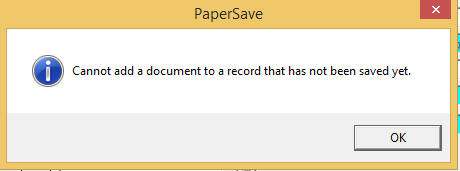
Note: While adding a record, if you try to access any PaperSave options without saving the record, then it will prompt you with an error as shown below.